

Languages


How to Use Corodomo: The Complete Guide to Learning Languages with Videos


Corodomo turns the videos you enjoy into language lessons. Every video gets bilingual subtitles and is split into sentences you can replay, shadow and have scored by AI.
All learning features live at corodomo.com/videos. This guide walks through them in order: getting started, choosing a video, each study mode, and finally vocabulary review and AI speaking practice.
The screenshots show the web app with an English interface, learning Japanese. For English, Chinese, Korean, German and Thai, every step is the same.
- 1. Getting started: choose your languages
- 2. Your learning dashboard
- 3. Video library and adding your own videos
- 4. Studying a video: subtitles, word lookup, Ask CoroAI
- 5. Shadowing mode
- 6. Pronunciation mode: sentence-by-sentence scoring
- 7. Listening mode
- 8. Exercises after watching
- 9. Speaking practice with CoroAI
- 10. 1:1 Coaching
- 11. Courses and Writing
- 12. My Videos
- 13. Vocabulary and flashcards
- 14. Community, Daily Challenge and Shorts
- 15. AI quota and Corodomo Plus
- A sample 20-minute session
- FAQ
- Conclusion
1. Getting started: choose your languages
Sign in at corodomo.com/videos with Google, email, or by scanning a QR code from the mobile app. On your first visit Corodomo asks two questions:
- What language do you want to study? Japanese, English, Chinese, Korean, German and Thai are available.
- Native language. Translations, word meanings and AI explanations are shown in this language.
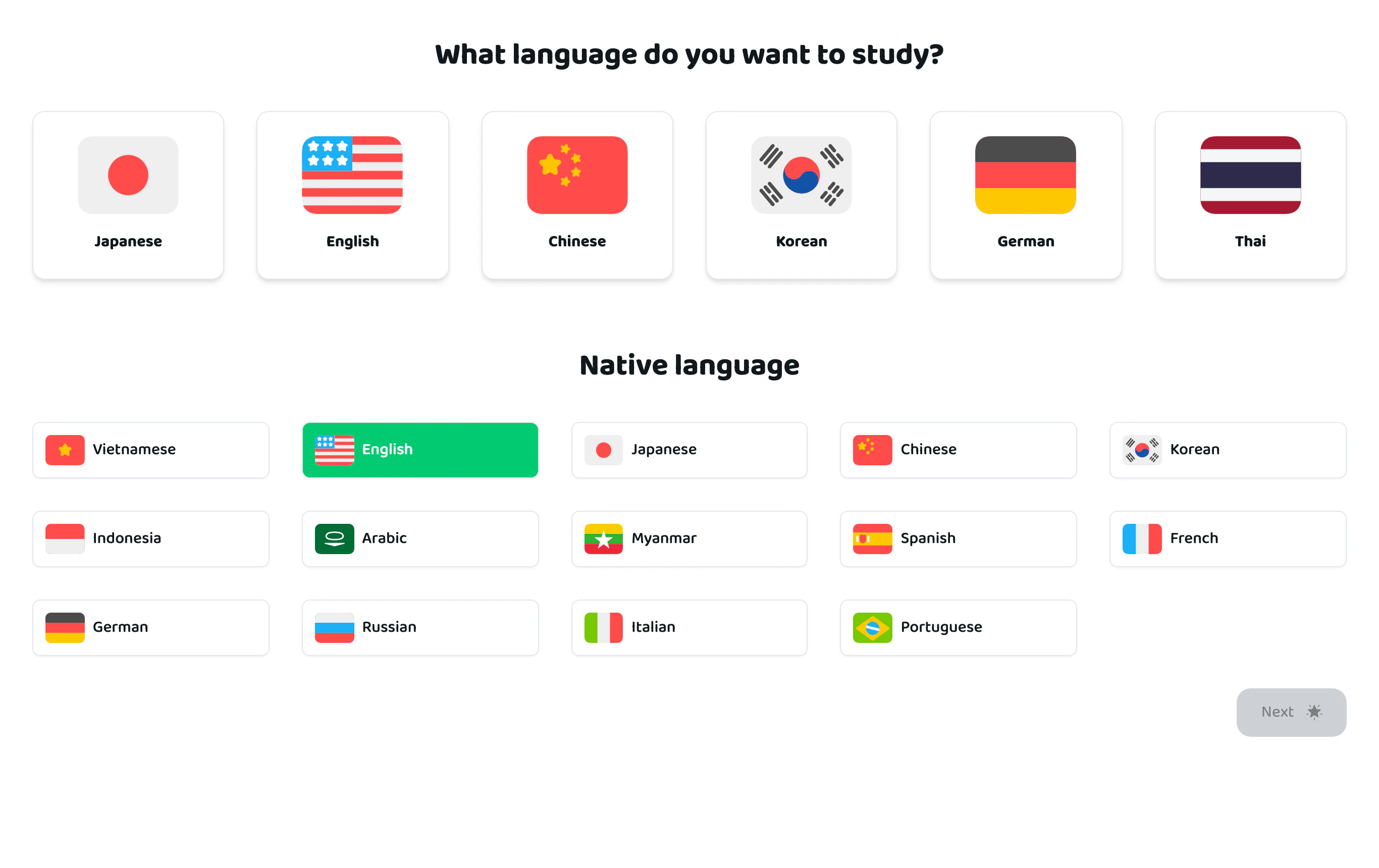
To switch study language later, click a flag under Languages in the left sidebar. The interface language is changed with the flag button in the top-right corner.
2. Your learning dashboard
Home is your personal dashboard. It shows:
- Minutes studied today against your daily goal.
- Your streak: how many days in a row you have studied.
- Shortcuts to Video Library, Speaking Practice, Pronunciation Course, Writing Practice, Video Courses and Vocabulary.
- 30-day learning history: the darker the square, the longer you studied that day.
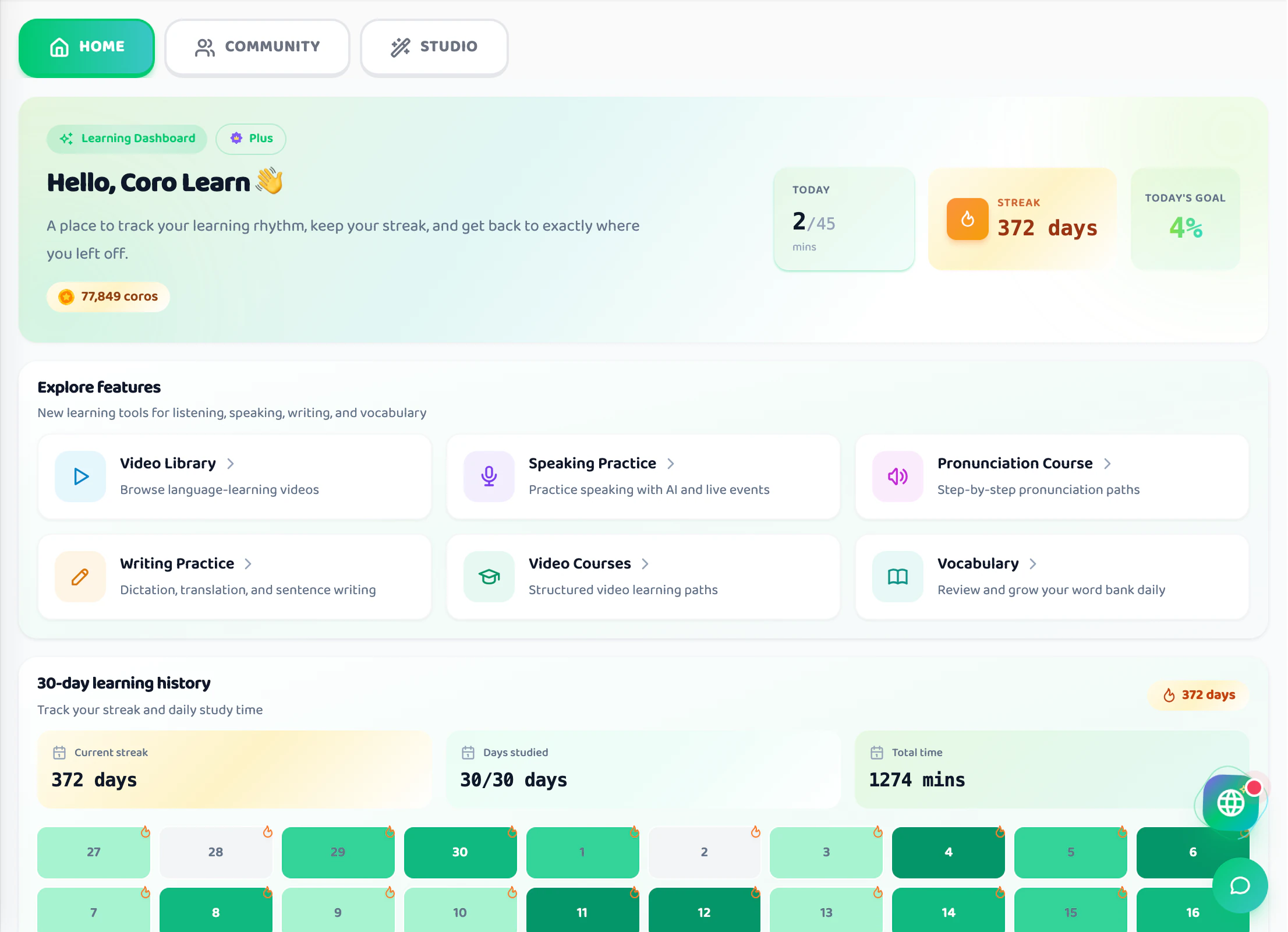
The tabs at the top also lead to Community and Studio. Community is covered in section 14.
3. Video library and adding your own videos
The library has three tabs in the top-right corner:
- Library: videos and playlists picked by Corodomo, filtered by topic such as Beginner, Podcast, Technology, Business, Movies & Anime.
- Explore: videos other learners added and shared publicly, filtered by language.
- Shorts: short vertical videos, see section 14.
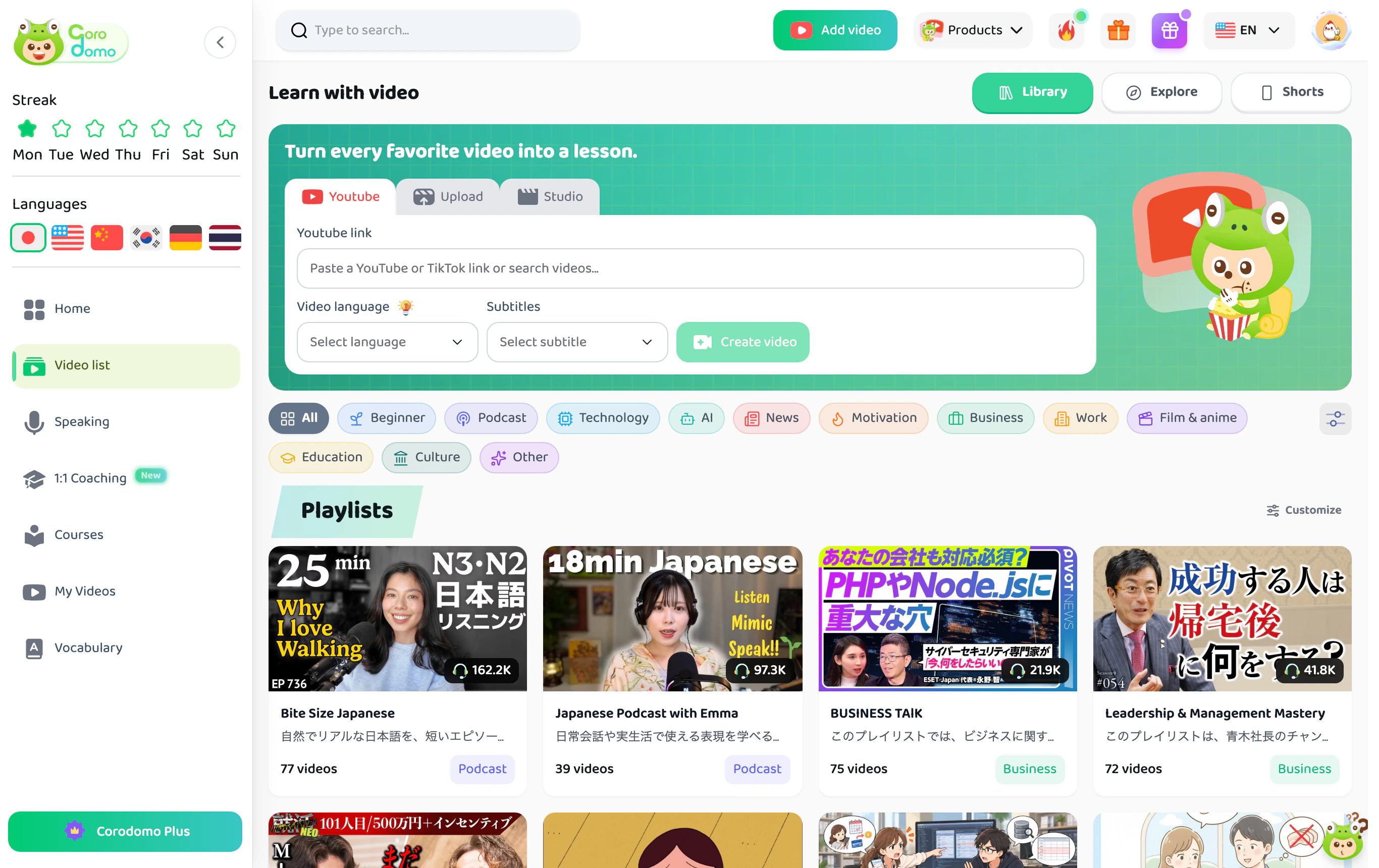
To study a video of your own, use the Turn every favorite video into a lesson box at the top of the page (or the Add video button in the header):
- On the Youtube tab, paste a YouTube or TikTok link. You can also type keywords to search for a video.
- Choose the Video language, the language spoken in the video.
- Choose the Subtitles: use the video's existing captions or let AI generate them.
- Click Create video. Corodomo splits the video into sentences and translates them into your native language.
Have a video file on your computer? Use the Upload tab. The Add video button also has Bulk import for adding many links at once.
4. Studying a video: subtitles, word lookup, Ask CoroAI
Open any video to reach the study page. The four modes sit in the top-right corner: Shadowing, Pronunciation, Listening and Exercises.
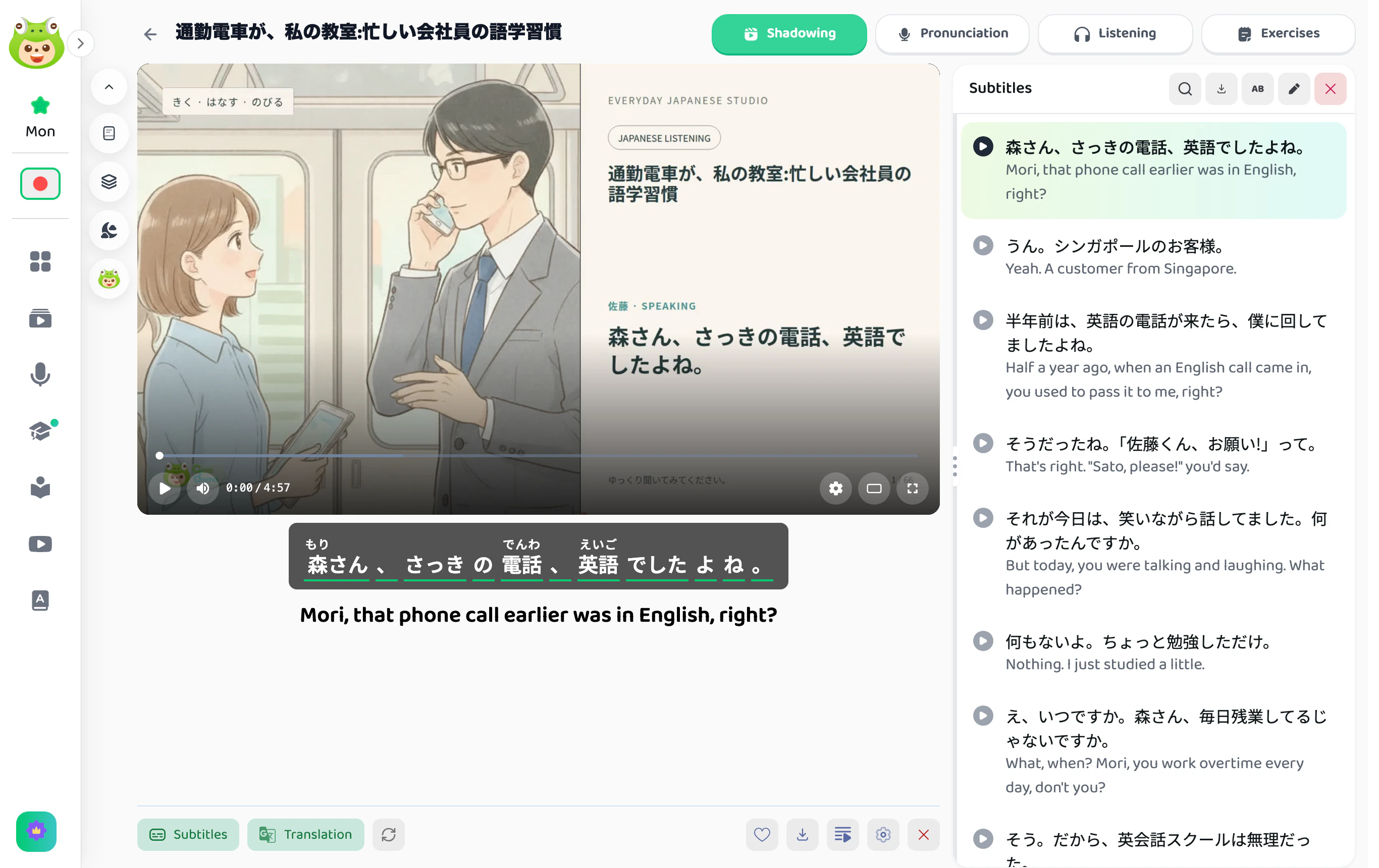
- Subtitles appear under the video with readings (furigana for Japanese, pinyin for Chinese) and a translation.
- The Subtitles and Translation buttons in the bottom bar toggle each line. Turn the translation off when you want to test your listening.
- The right column lists every sentence. Click ▶ next to a sentence to jump straight to it.
Look up words right in the subtitles
Click any word in the subtitles. A small card shows its meaning, reading and an example sentence taken from the video itself.
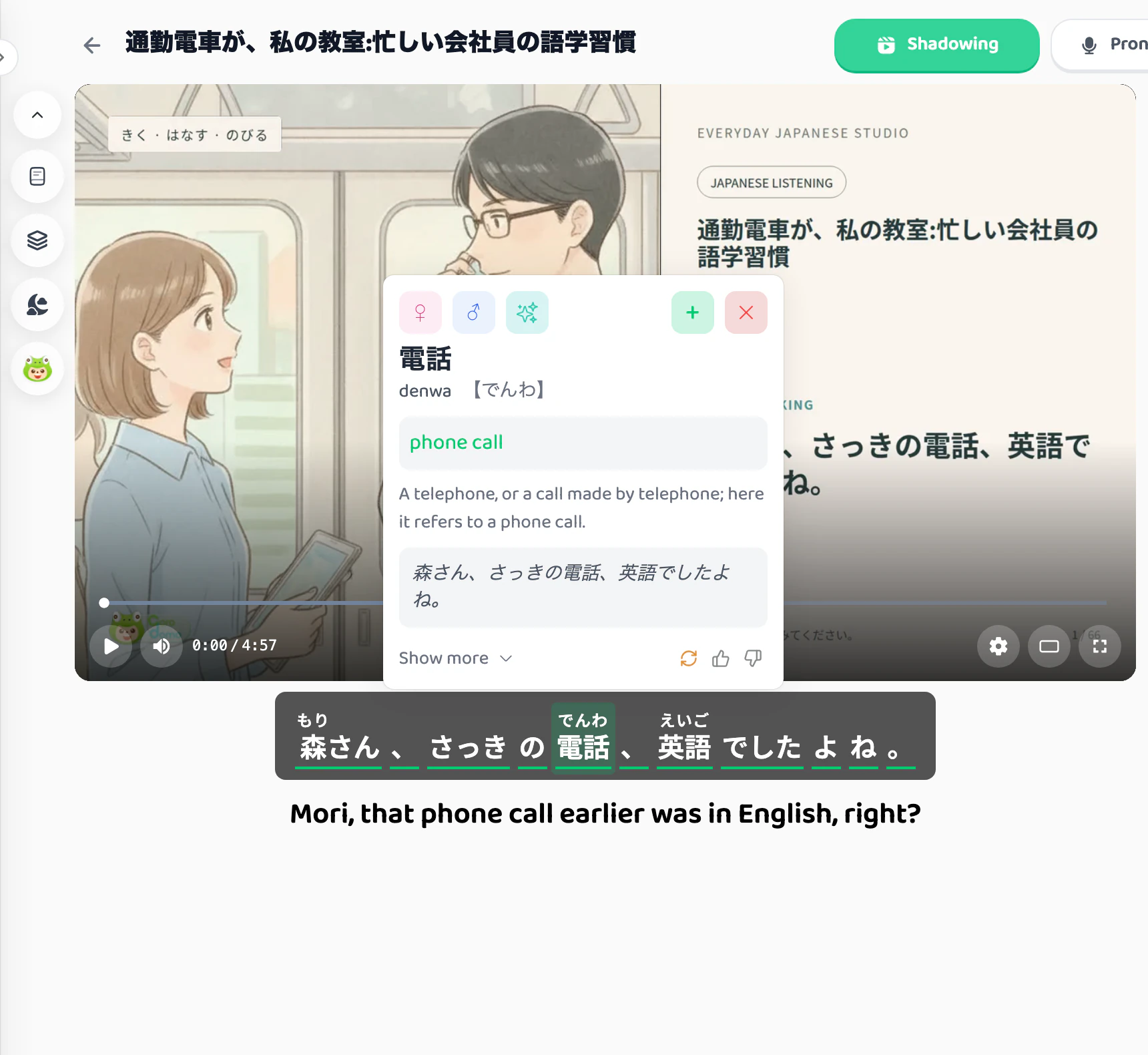
- The female and male voice buttons play the word's pronunciation.
- Show more opens a detailed explanation: usage, common phrases, synonyms and typical mistakes.
- The + button saves the word to your flashcards for later review in Vocabulary.
Ask CoroAI
Stuck on something? Click the green frog icon in the tool column next to the video. CoroAI answers questions about the vocabulary, grammar or phrasing in the video.
5. Shadowing mode
Shadowing means listening to a native speaker and speaking along about half a beat behind. It is the default mode when you open a video. A good routine:
- Watch the whole video once with subtitles and translation to understand it.
- Click ▶ on each sentence in the list, listen a few times, then speak along with the speaker.
- Replay a difficult sentence on its own until you can keep up with the rhythm.
- Once comfortable, turn off the translation, then the subtitles, and shadow the whole passage.
New to the method? Read Japanese Shadowing Practice for Beginners: A Step-by-Step Guide.
6. Pronunciation mode: sentence-by-sentence scoring
Click Pronunciation and Corodomo offers two ways to practice:
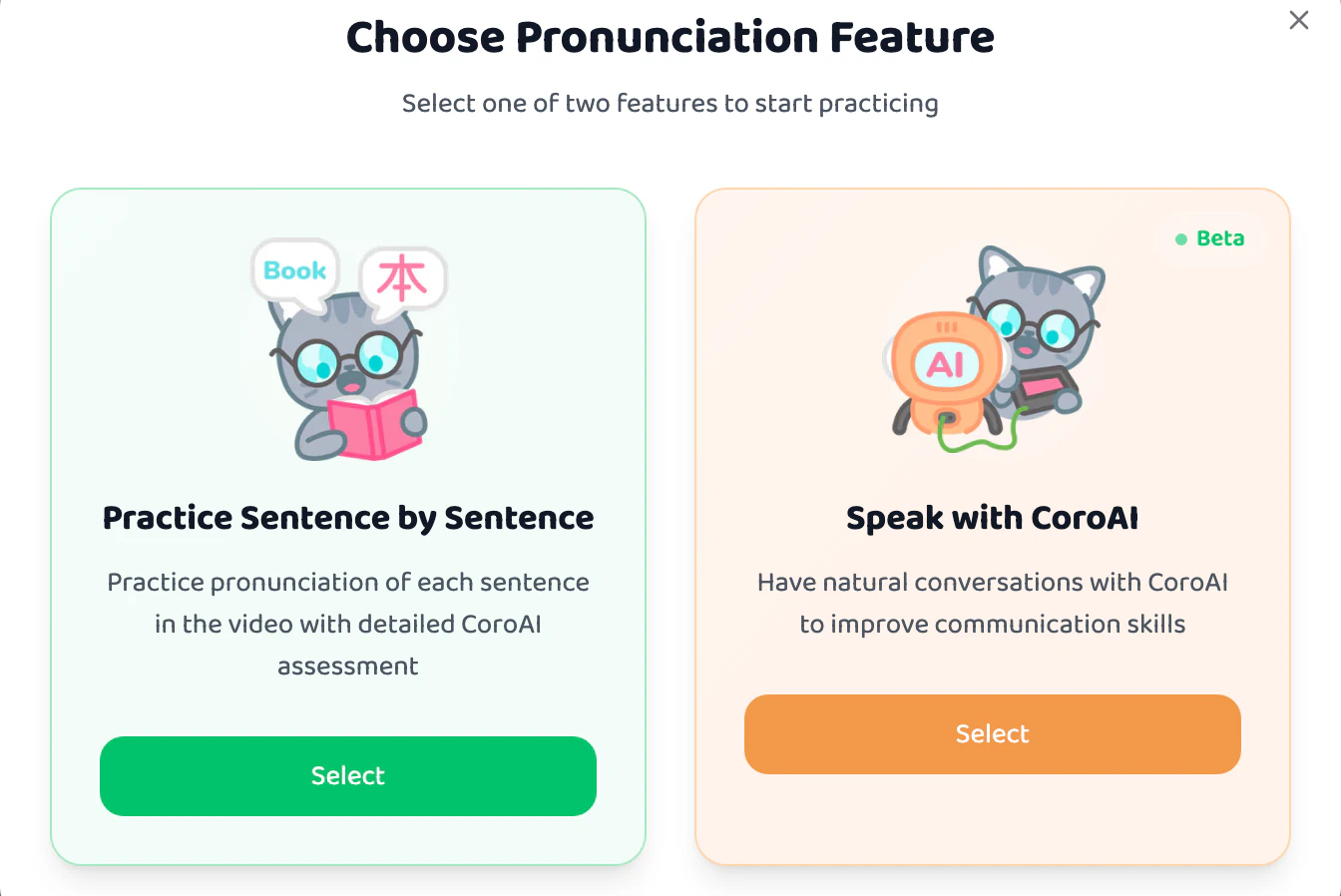
- Practice Sentence by Sentence: read each sentence of the video aloud and get a detailed AI score.
- Speak with CoroAI (Beta): have a natural conversation with AI about the video.
In sentence-by-sentence practice the current sentence sits in the right panel. The three main buttons all have keyboard shortcuts:
- Replay (Space): hear the model sentence again.
- Check Pronunciation (Enter): record yourself reading the sentence and get scored.
- Next (Shift + →): move to the next sentence.
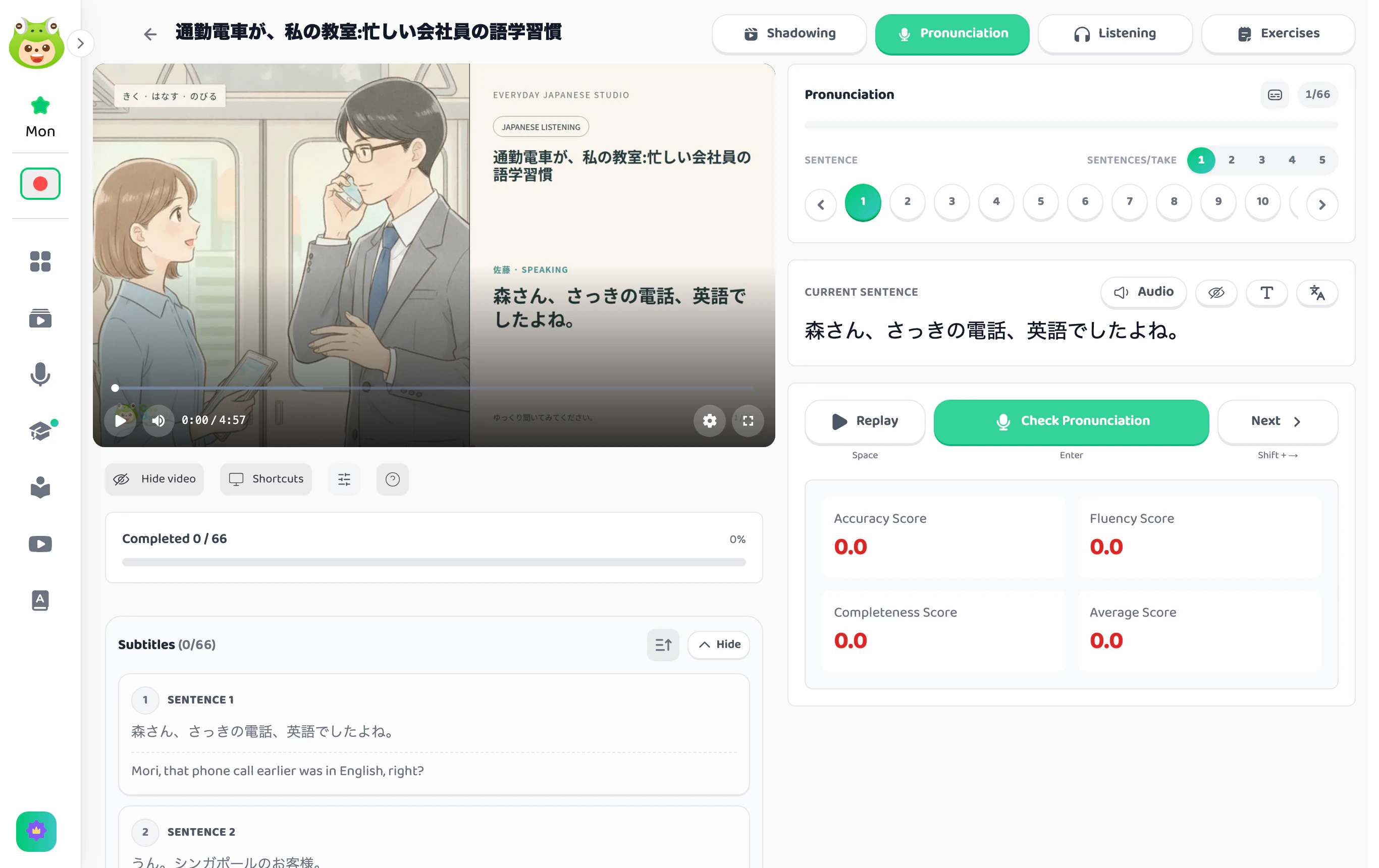
Each attempt returns four scores: Accuracy, Fluency, Completeness (whether you skipped words) and an Average. You can set Sentences/take from 1 to 5 to read several sentences in one go. The Completed bar on the left shows how many sentences of the video you have practiced.
Your browser asks for microphone permission the first time; click Allow.
7. Listening mode
Listening offers three exercise types, all built from the video's own dialogue:
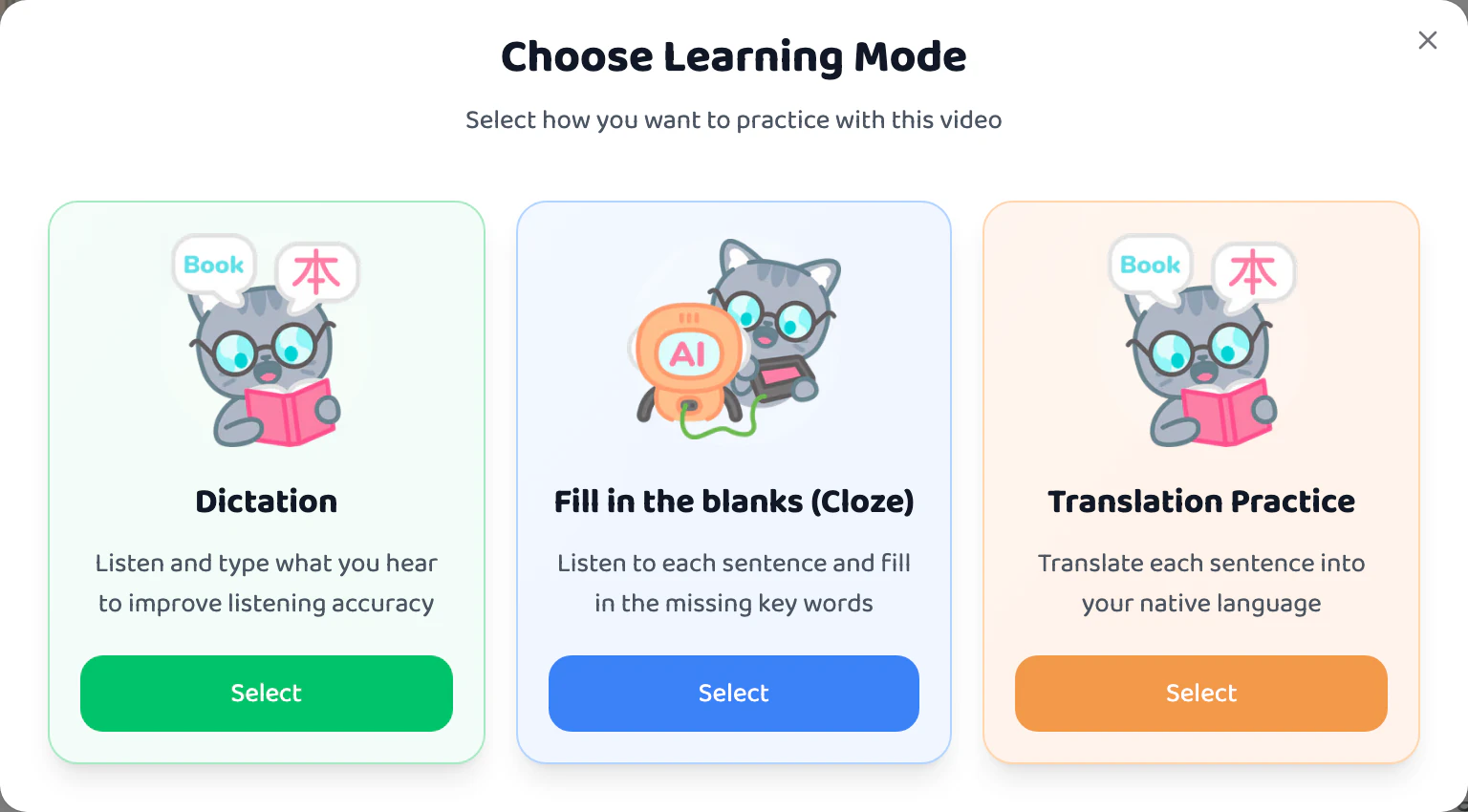
- Dictation: listen to each sentence and type it out in full.
- Fill in the blanks (Cloze): listen and fill in the key words that are missing. Lighter than dictation and good for beginners.
- Translation Practice: translate sentences from the video to understand the context and how native speakers use words.
Curious why dictation works so well? See Japanese Dictation Practice: Improve Your Listening Step by Step.
8. Exercises after watching
The Exercises tab collects activities for reviewing what you just watched:
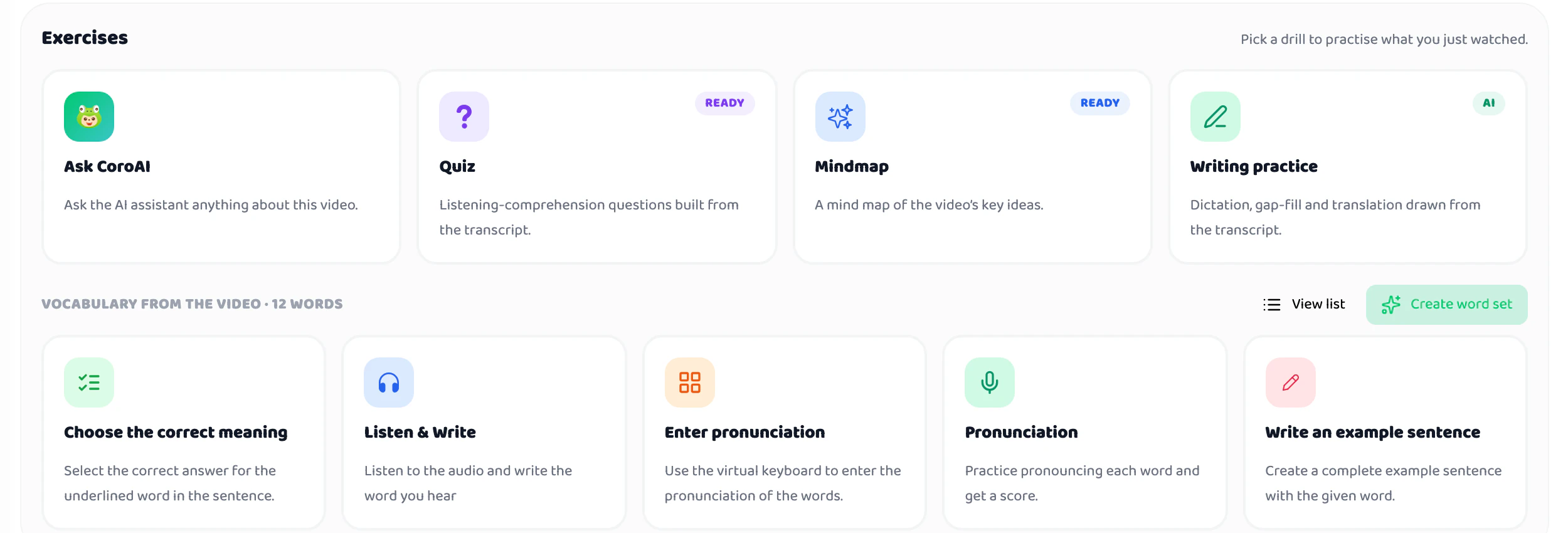
- Ask CoroAI: questions and answers about the video.
- Quiz: listening comprehension questions section by section.
- Mindmap: a mind map summarizing the key points.
- Writing practice: dictation, fill-in-the-blank and translation using lines from the video.
The Vocabulary from the video section below has five drills for the key words: Choose the meaning, Listen & Write, Enter pronunciation, Pronunciation and Write an example sentence. Click Create word set to save the whole set to your flashcards.
9. Speaking practice with CoroAI
Speaking in the left sidebar is where you practice role-play conversations. Each scenario has an illustration, a short description and a level (N5 → N1 for Japanese).
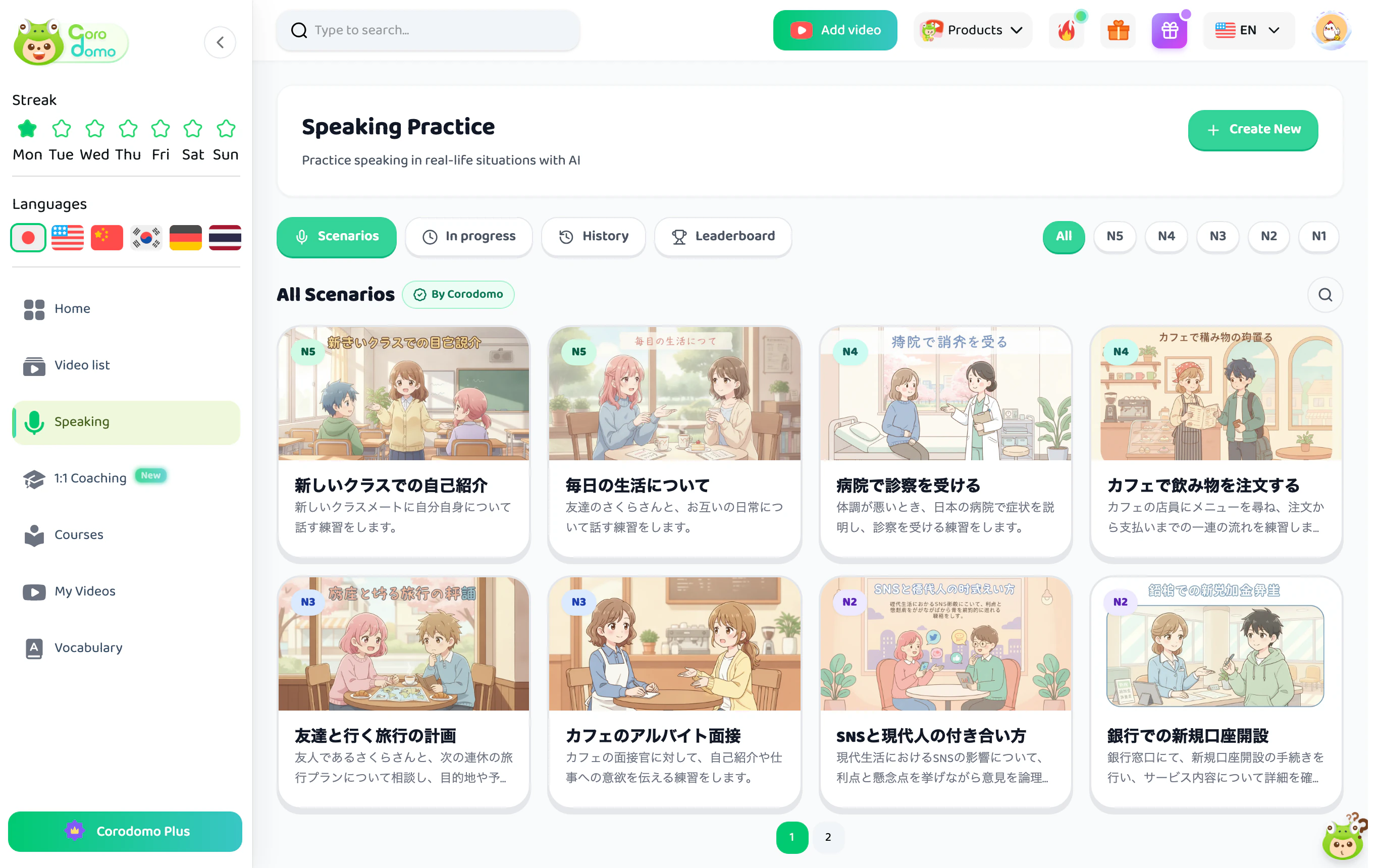
- Scenarios: situations written by Corodomo, such as introducing yourself, ordering a drink at a café, seeing a doctor or a part-time job interview.
- In progress and History: resume an unfinished conversation or review past ones.
- Leaderboard: compare your scores with other learners.
- Create new: build your own scenario, for example to rehearse an upcoming interview.
10. 1:1 Coaching
1:1 Coaching is a shadowing program with AI as your coach. You pick a passage, record and submit it each day, and the AI listens to your take and points out what to fix.
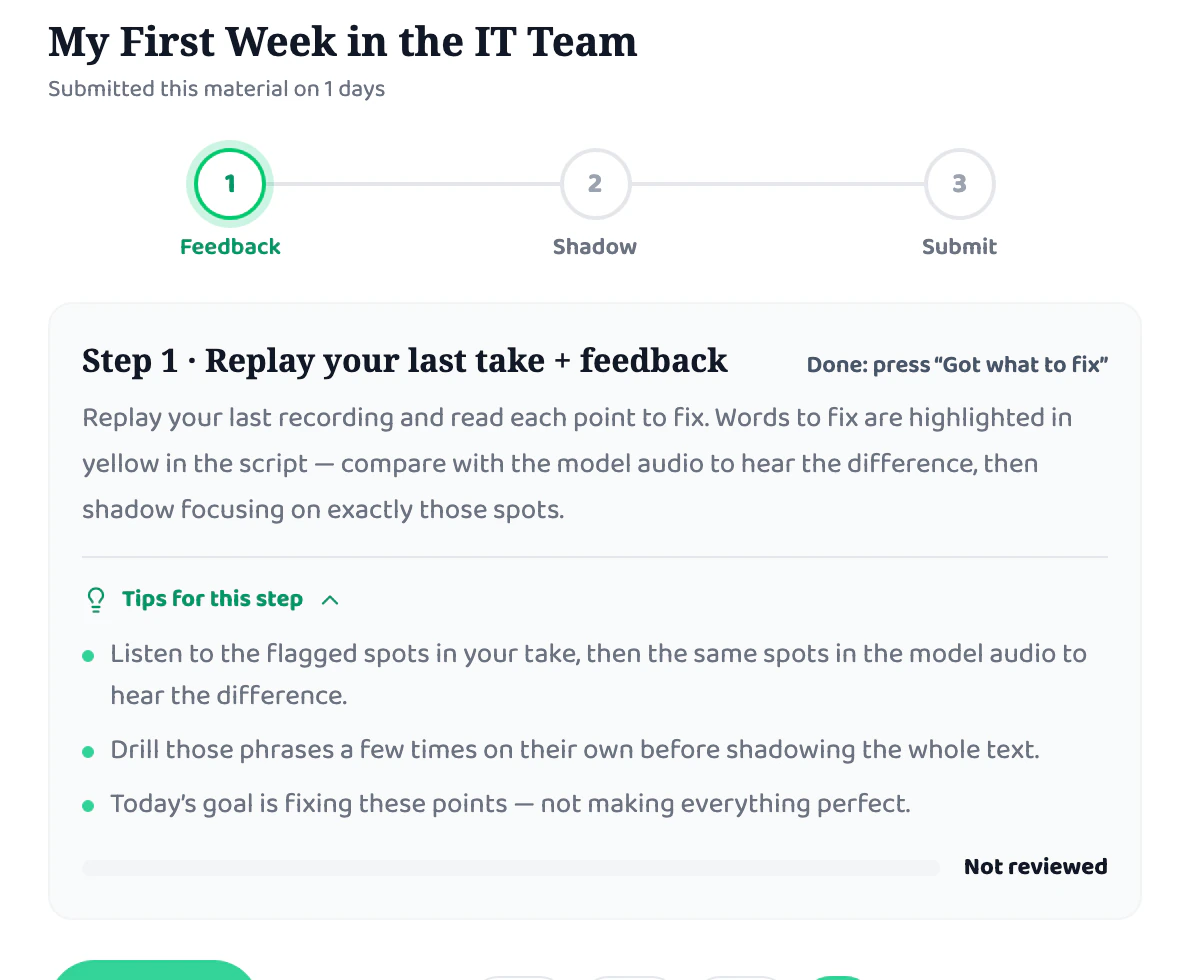
Each session has three steps:
- Feedback: replay your previous take. Words to fix are highlighted in yellow in the script.
- Shadow: practice focusing on exactly those spots.
- Submit: record the whole passage and submit it for new feedback.
The Coach panel tells you which words you skipped, which sounds were off, and how much slower or faster you were than the model. You can keep asking the coach questions like in a chat. The number of coaching sessions depends on your plan.
11. Courses and Writing
If you would rather not pick videos one by one, open Courses: structured learning paths by topic, from beginner to advanced.
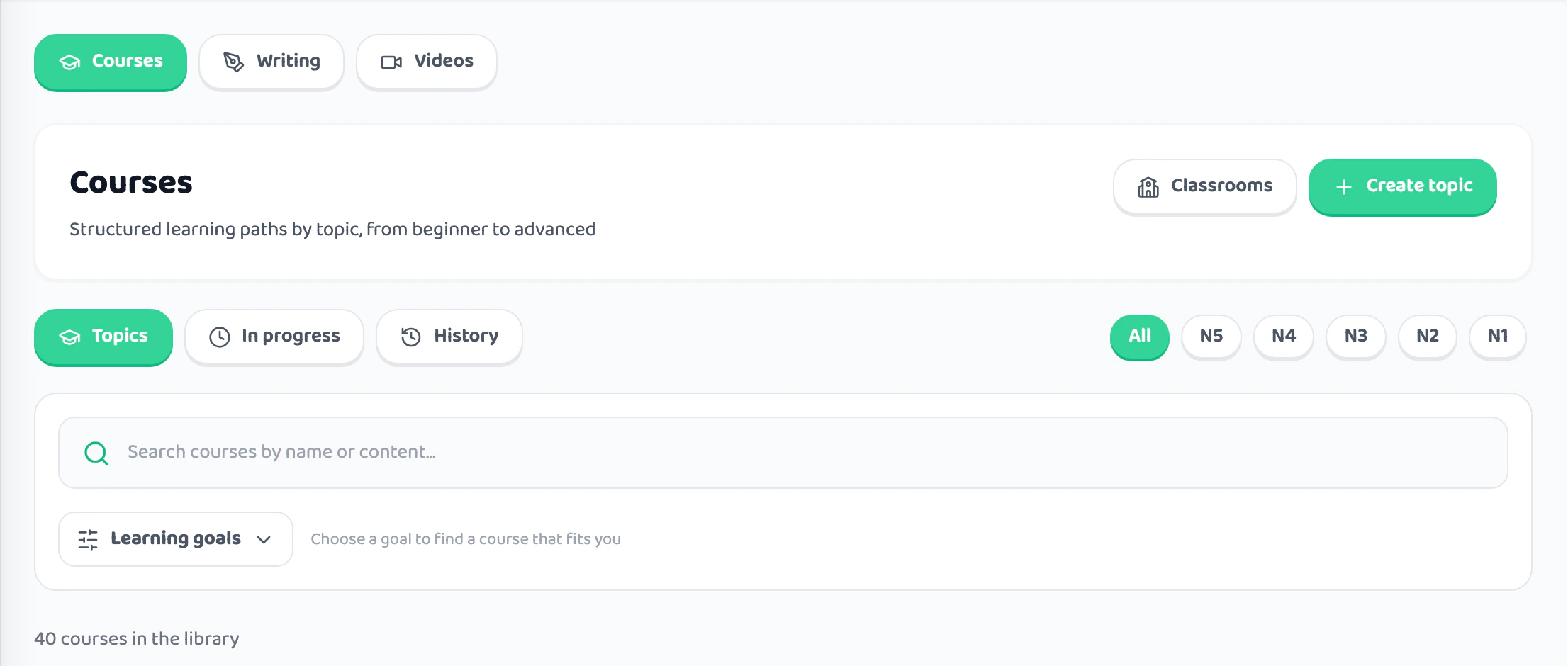
- Filter by the level of your study language and by Learning goals.
- The In progress and History tabs track each course.
- Create topic lets you build your own path.
- The Videos tab at the top holds video-based courses.
The Writing tab next to it has six exercise types:
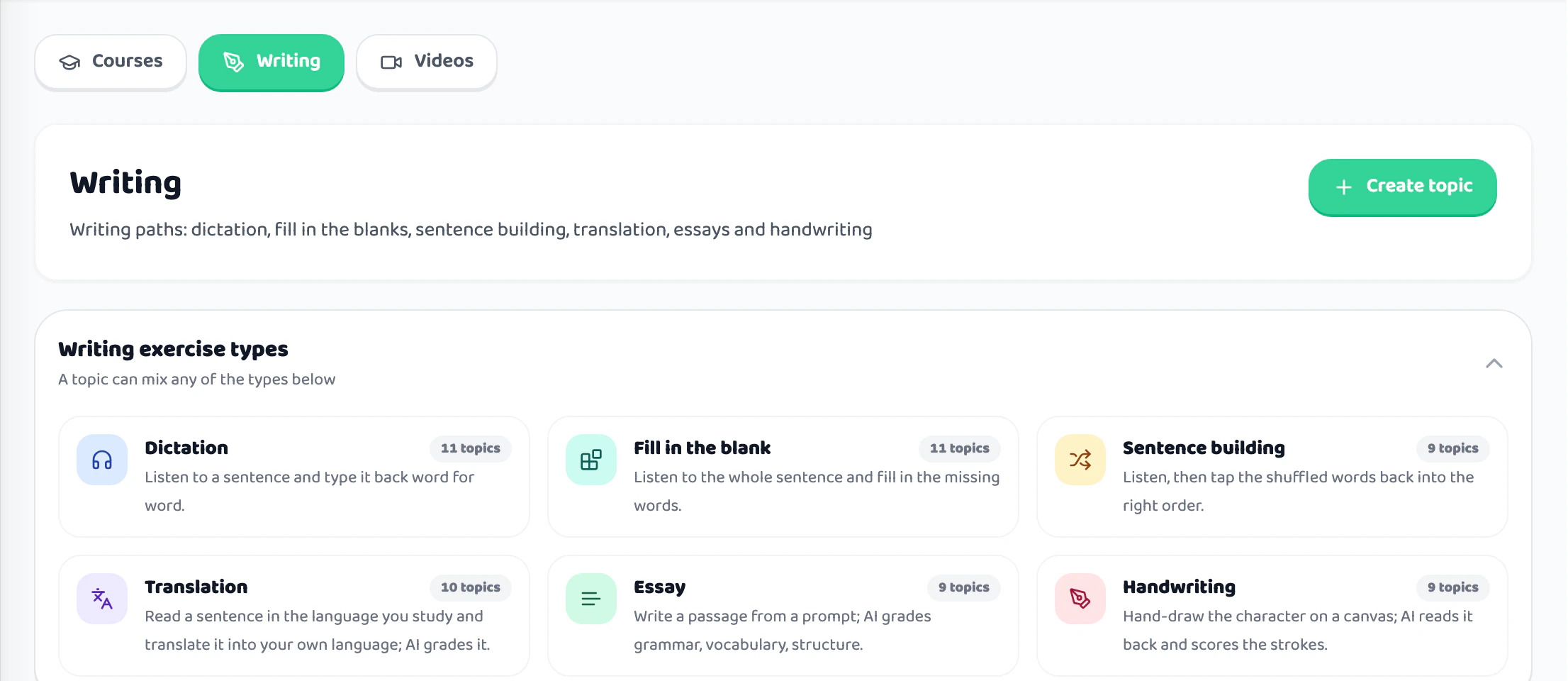
- Dictation: listen to a sentence and type it back word for word.
- Fill in the blank: listen to the whole sentence and fill in the missing words.
- Sentence building: put shuffled words back in the right order.
- Translation: translate sentences into your own language, scored by AI.
- Essay: write to a prompt; AI grades grammar, vocabulary and structure.
- Handwriting: draw characters on a canvas; AI reads them back and scores the strokes.
12. My Videos
Every video you add lives in My Videos. Each one shows your Shadowing and Dictation progress, the number of words saved and the completion percentage.
- Filter quickly by Favorite, Completed, Upload, Public, Private and by language.
- Use the Folders column to group videos into sets, such as "Podcast N3" or "Business English".
13. Vocabulary and flashcards
Words you save while watching all land in Vocabulary. Corodomo schedules reviews right before you are likely to forget, and the calendar in Vocabulary to review shows what is due.
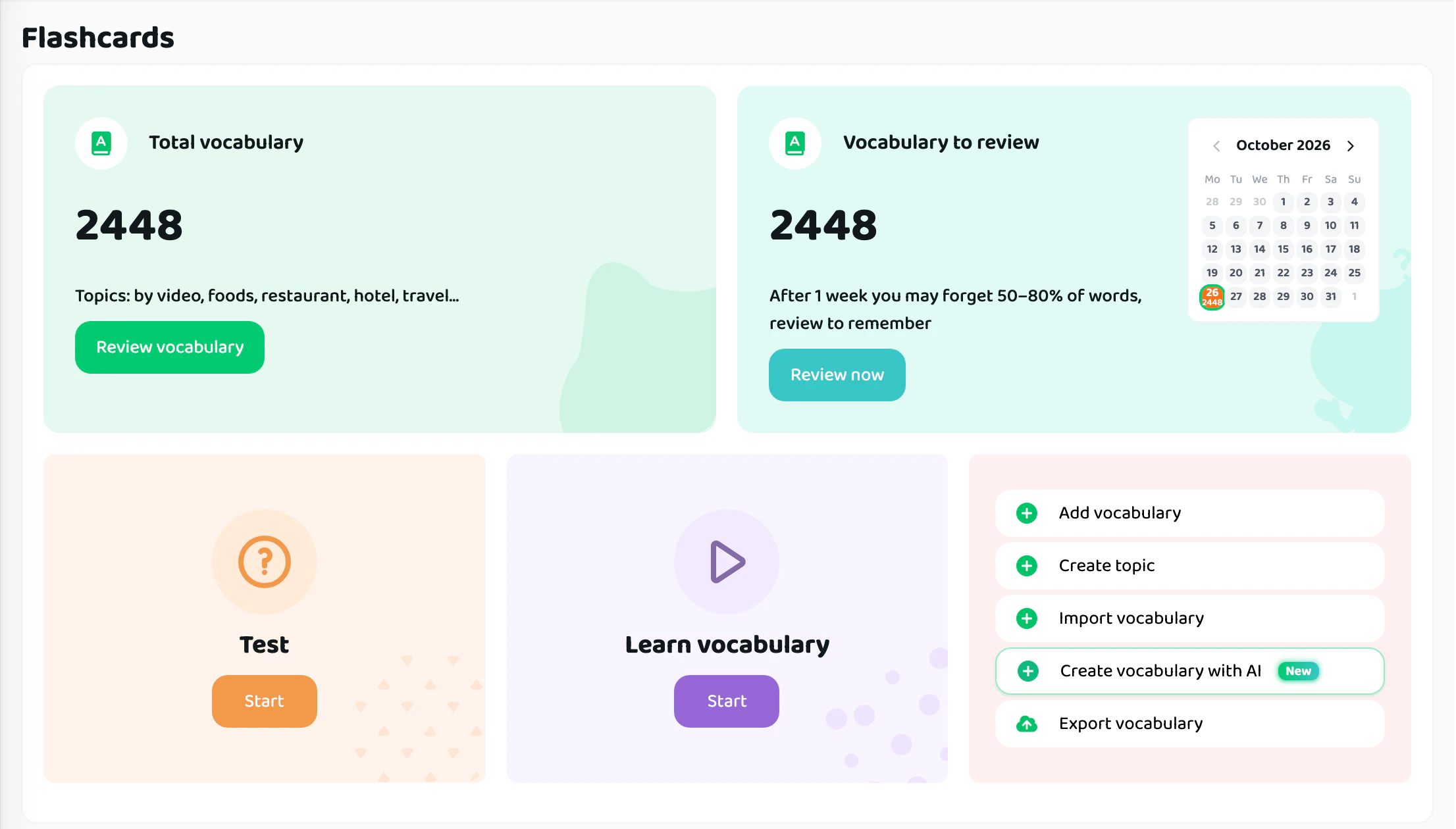
- Review vocabulary: every saved word, grouped by topic.
- Review now: go through the words due today.
- Learn vocabulary and Test: study with cards and take a quiz.
- Add vocabulary, Create topic, Import vocabulary, Create vocabulary with AI and Export vocabulary are in the panel on the right.
14. Community, Daily Challenge and Shorts
The Community tab on Home is where learners share posts and join challenges. The highlight is the Daily Shadowing Challenge: listen to a native speaker read a short passage, then read it back as closely as you can and get scored on pronunciation and fluency.
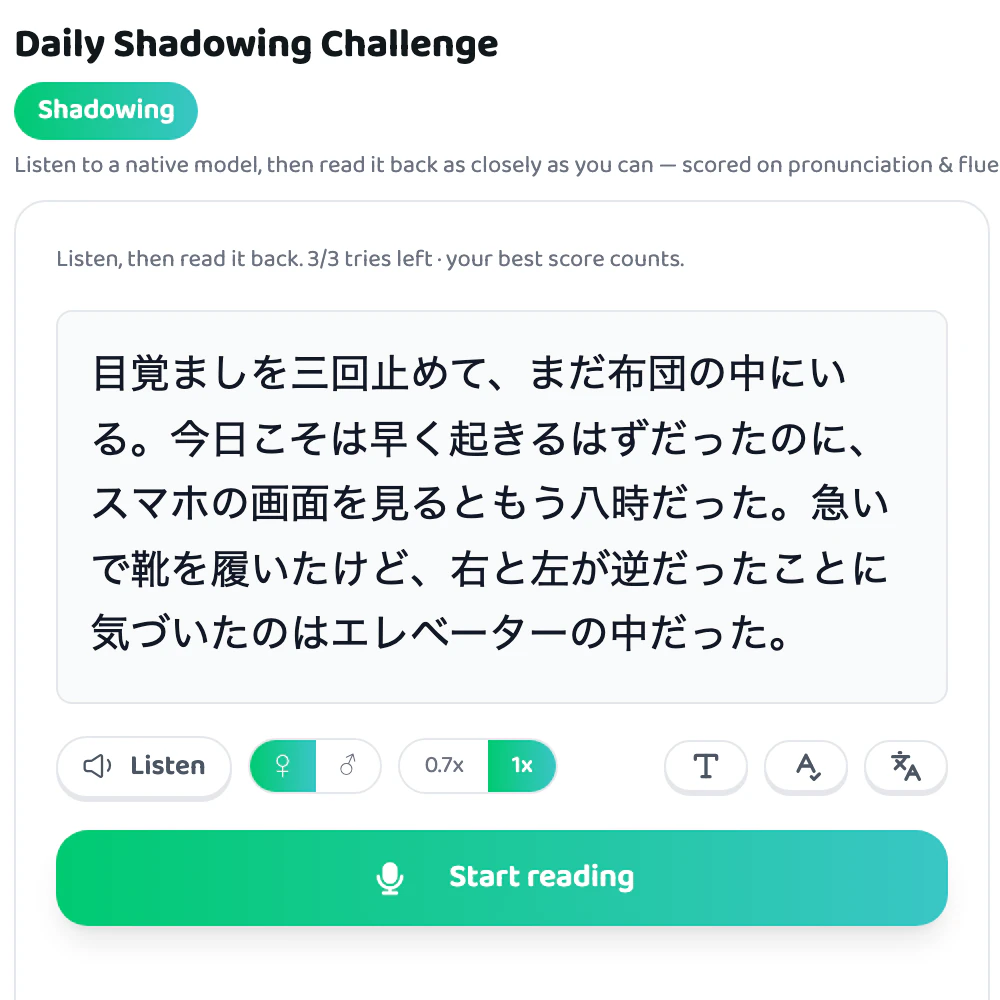
You get 3 tries a day and your best score counts on the leaderboard. The model audio is available in a female or male voice, at 0.7x or 1x speed.
Shorts (in the library) are short vertical videos with bilingual subtitles. When a line catches your ear, tap Learn now to open the video on the full study page.
15. AI quota and Corodomo Plus
AI features such as subtitle generation, pronunciation scoring and speaking practice all draw from one AI usage quota that depends on your plan. How the quota is counted and what each plan includes is explained on How AI usage is calculated.
Need more? Click Corodomo Plus at the bottom of the sidebar or see the pricing page.
A sample 20-minute session
| Time | What to do | Mode |
|---|---|---|
| 3 min | Watch the whole video with subtitles and translation, look up unknown words | Shadowing |
| 5 min | Dictation or fill-in-the-blank for the first 5–10 sentences | Listening |
| 7 min | Shadow sentence by sentence, then turn off the translation and shadow the passage | Shadowing |
| 3 min | Score the sentences you practiced, redo any below 70 | Pronunciation |
| 2 min | Review the words that are due | Vocabulary |
Want to try it now? Open the sample video 通勤電車が、私の教室 (a Japanese office conversation) used in the screenshots above.
FAQ
Is Corodomo free?
There is a Free plan for learning with videos. AI features draw from a quota that depends on your plan; see the AI quota page for details.
Which languages can I learn?
Japanese, English, Chinese, Korean, German and Thai. Translations and explanations can be shown in English, Vietnamese, Japanese, Chinese, Korean, Indonesian, Arabic, Burmese, Spanish, French, German, Russian, Italian and Portuguese.
What if a YouTube video has no subtitles?
When adding the video, choose AI-generated subtitles. AI transcribes the speech, splits it into sentences and translates it into your native language. This uses your AI quota.
Is there a mobile app?
Yes. Corodomo is on the App Store and Google Play. Sign in with the same account to share videos, vocabulary and progress with the web version.
Why doesn't pronunciation scoring work?
Check that your browser has microphone permission (the lock icon next to the address bar). Speak close to the mic in a quiet place and finish the whole sentence before stopping.
Conclusion
Everything on Corodomo follows one loop: pick a video you like, understand it with bilingual subtitles and word lookup, then practice listening, speaking and pronunciation on that same video. The words you save come back for review at the right time.
More on the method: Japanese Shadowing vs Repeating and English Shadowing Practice with Videos. To see how Corodomo supports shadowing, visit the Shadowing method page.
Start now at corodomo.com/videos: paste your first video link and practice your first sentence in a few minutes.